Using IBC Bridge
Practical Understanding of IBC
Through Inter-Blockchain Communication (IBC) protocol Synternet mainnet is connected to Osmosis mainnet. Osmosis is the leading decentralized exchange on Cosmos ecosystem. This IBC connection enables users to:
- Trade SYNT on app.osmosis.zone
- Transfer SYNT freely between Synternet and Osmosis blockchains
- Provide the liquidity to SYNT/USDC pool (also see the guide)
The SYNT tokens you are holding on Osmosis blockchain are actually an IBC representation of SYNT tokens native to the Synternet blockchain.
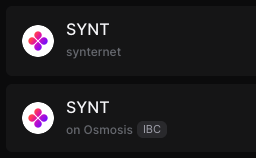
Therefore, on Keplr wallet the original SYNT token and its IBC representation will be visualized separately. Native SYNT on Synternet vs. SYNT on Osmosis blockchain should look like this:
Sending from Synternet to Osmosis
- Click on your SYNT balance
- Select Send
- Select Cross-Chain Send
- Select Osmosis
- If you want, change your wallet address on Osmosis chain (it should start with
osmo1)
Keplr should auto-fill your address by default, which is derived using the same identity you use for the Synternet address sending the tokens.
- Enter SYNT amount you wish to send
- Click Next
- Click Approve to sign.
Sending from Osmosis to Synternet
- Click on your SYNT On Osmosis balance
- Select Send
- Select Cross-Chain Send
- Select synternet (Home Chain)
- If you want, change your wallet address on Synternet chain (it should start with
synt1)
Keplr should auto-fill your address by default, which is derived using the same identity you use for the Osmosis address sending the tokens.
- Enter SYNT amount you wish to send
- Click Next
- Click Approve to sign.
Troubleshooting
This is a relevant Synternet-Osmosis IBC channel metadata:
- Synternet chain id:
synternet-1 - Channel Id on Synternet side:
channel-1 - Osmosis chain id:
osmosis-1 - Channel Id on Osmosis side:
channel-85186 - IBC address of SYNT token representation:
ibc/1B454982D3746951510D3845145B83628D4ED380D95722C8077776C4689F973A
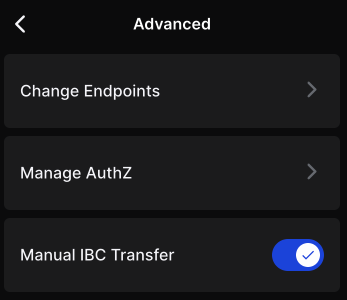
In case the destination chain is not visible on Keplr by default, it means IBC channel is not configured on Keplr. So, for the first time transfer, you may need to enable Manual IBC transfer within Keplr extension Settings > Advanced:
Then in Keplr extension Home scroll to the bottom and start Advanced IBC Transfer by clicking Transfer. Select the SYNT token. Then create a new IBC channel:
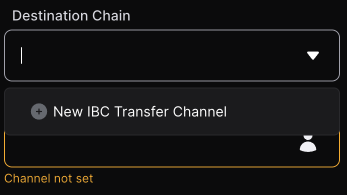
If you are selecting Osmosis as Destination Chain, the source channel id is channel-1. If you already have SYNT tokens on Osmosis and want to send these to Synternet, you are selecting Synternet as Destination Chain, therefore the source channel id is channel-85186.
In case Synternet is not visible on Keplr as destination chain, you need to add it as a custom chain. However, the easiest way to do this is simply visiting one of the Synternet dApps that has Keplr wallet integration, e.g. Token Center or Developer Portal. If you have Keplr extension installed, the website will offer to add synternet-1 chain for you.
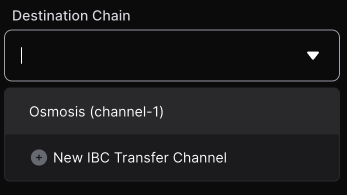
Click save and now the newly created channel is in the list:
Note, that if the wallet address on destination chain isn't auto-filled, you can always select it from the address book clicking the small person icon:
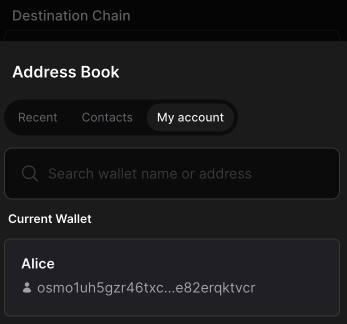
You can then proceed with entering the amount and confirming the transaction.